


discovery+ | Stream TV Shows
4.732.33K Reviews
App Specs
- Version
- Varies with Device
- Updated On
- License
- Free
- Downloads
- 10,000,000+
- Developer
- Discovery Communications LLC
- Categories
- Entertainment
- Platform
- Android, iOS
Screenshots

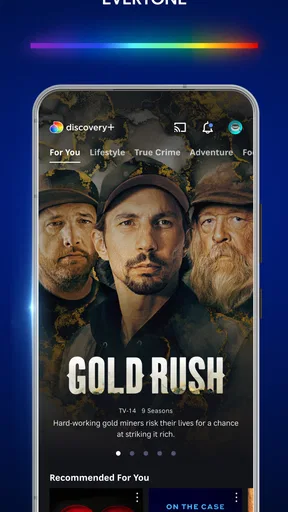
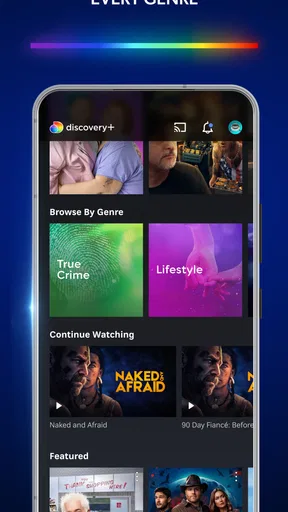
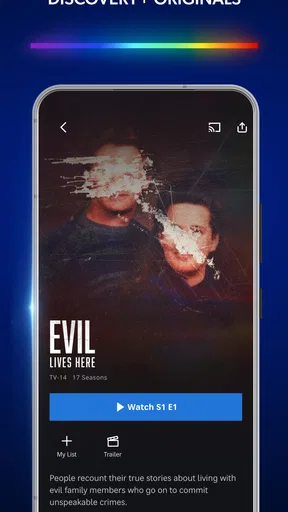
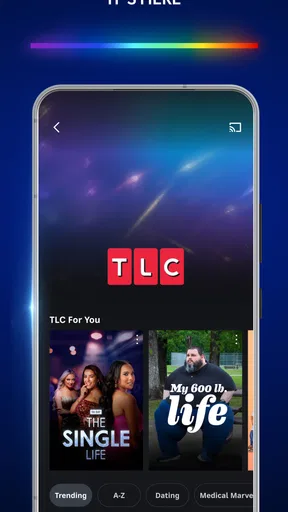

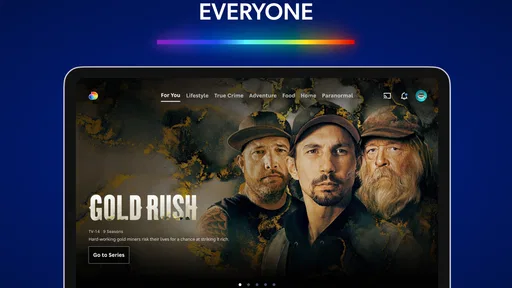
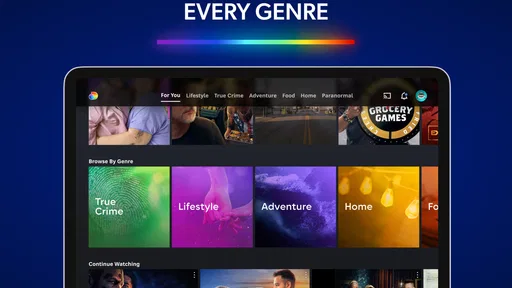
 Analysis by AppCompare
If you’re new to discovery+ | Stream TV Shows, the easiest way to think about it is as a streaming app centered on real-life entertainment: documentaries, reality series, food, homes, and wildlife rather than a broad mix of every kind of film and television. I’d choose it when I already know I’m in the mood for that particular corner of TV, not when I want one subscription to cover every possible viewing mood. The app is free to install, while access to viewing can involve in-app purchases, so I’d check the options shown in the app before treating it as a no-cost source of full episodes.
That focus is its most useful strength and its main trade-off. Discovery Communications LLC is behind the Entertainment app, which has a 4.7 average from around 398,000 ratings and over 10 million installs. Those figures suggest a well-established service, but they don’t tell me whether its particular mix suits your household. I’d judge it by the shows and topics you actually watch: if home makeovers, food competitions, relationship reality, crime stories, and nature programs already fill your queue, it has a clear purpose; if you mostly watch scripted dramas or films, a general-purpose streamer may be a better first choice.
What to expect from a focused streaming library
The app brings programming associated with Discovery’s entertainment brands together in one place, including familiar areas such as home, food, relationships, and animals. That makes browsing feel different from opening a service built around blockbuster films or scripted series. I find the appeal is less about having every genre and more about being able to settle into a topic and follow it from one program to another.
That distinction helps set expectations before you spend time browsing. If you want a quick, low-effort watch, reality episodes and short-form factual stories can be easier to pick from than a long drama with a complicated plot. If you want a carefully structured documentary or a specific series, searching by title or subject is likely more effective than scrolling through the home screen and hoping it appears.
The Teen age rating is also worth keeping in mind when deciding whether to use the app around younger viewers. It is not a guarantee that every program will suit every teenager or family, so I’d still check the individual show details and make the choice with the people who will be watching. For shared viewing, that small check can prevent the awkward moment of discovering that a show’s subject matter is not what everyone expected.
Getting from installation to a useful first watch
My first-time-user approach would be simple: install the app, open it, and decide what you want to watch before getting lost in the catalogue. Search for a known program or browse one subject you already enjoy, such as food or wildlife. That gives you a quick test of whether the library matches your taste, instead of mistaking a long list of options for proof that the app is right for you.
When you find something you may want to return to, use the watchlist described in the app’s interface rather than relying on memory. I find this particularly helpful when I’m choosing something for later with another person: save a couple of candidates while browsing alone, then make the final choice together. It turns discovery into a short, manageable task instead of restarting the search every time you sit down.
Worth Reading Before You Choose

EA SPORTS FC Mobile 26 Is a Bigger Football Game, but It Takes Time

Flipboard Shows What News Apps Must Do Beyond the Feed

Switching to Android Auto Means Rethinking Your Driving Routine

Google Calendar Makes a Crowded Week Easier to Manage

Ludo King Makes the Most of the Minutes Between Plans

Baby Panda World Brings Quick Play to Modern Phones, but Its Game Library Feels Busy
Before settling in, look over the available purchase or subscription choices displayed in the app. The app itself is free, and in-app purchases range from $0.99 to $89.99 per item; that wide span makes it sensible to inspect exactly what an option covers before confirming anything. I would not assume that installing it automatically includes every show or that every title has the same access terms. If you are trying it on a budget, check the screen carefully and stop if the offer is not clear to you.
A realistic first success could be a quiet evening when you have twenty minutes to choose something together. One person can search for a familiar show, while the other browses by topic; save the better options, compare them, and start with the one that fits the time you have. That is a more reliable way to learn whether the app works for your routine than spending the whole evening sampling unrelated programs.
How it fits into an everyday viewing routine
If you’re anything like me, you love diving into a good TV show marathon. And when it comes to discovery+ | Stream TV Shows, it feels like I’ve hit the jackpot of binge-worthy content. This app brings a treasure trove of shows right to your fingertips, and I’m here to spill the tea on why it’s a must-have for any streaming enthusiast.
User Experience and Interface
The app’s interface is sleek and super intuitive. Even if you’re not tech-savvy, navigating through the app is a breeze. The layout is clean, with easy access to categories, so you can quickly find what you’re looking for. I particularly love the personalized recommendations. It’s like the app just gets me and my constant need for new content!
What’s really cool is the way they’ve organized the content. You can browse through different genres, channels, or even by themes. There’s also a search bar if you’re in the mood for something specific. And let’s not forget the handy “My List” feature where you can save shows for later. It’s like having your own personal watchlist.
The Content Galore
Now, onto the good stuff—what you can actually watch. Whether you’re into crime documentaries, reality TV, or nature shows, discovery+ has got you covered. The variety is impressive, with both classic shows and fresh new titles. I found myself glued to the screen watching "90 Day Fiancé," and let’s be real, who wouldn’t get sucked into that drama?
And for those of us who love a bit of exclusivity, the original content is a major win. There are shows you won’t find anywhere else, which makes it feel like you’re in on a little secret. Plus, the quality of these originals is top-notch, definitely worth the watch.
Performance and Quality
Streaming on discovery+ is smooth sailing. I’ve had zero issues with buffering or lag, even when I’m watching in high-definition. The playback quality is crisp, and the sound is spot on. They’ve really nailed the technical side of things, which makes the viewing experience all the more enjoyable.
It’s also worth mentioning that the app supports multiple devices, so whether you’re watching on your phone, tablet, or TV, you’re all set. And if you’re like me, hopping between devices is a daily occurrence, so this flexibility is a huge plus.
For a first session on a phone, I’d think about the setting as much as the show. A small screen can be perfectly fine for listening to a conversation-heavy episode while cooking or commuting, but a wildlife program or a visually detailed home renovation is more rewarding on a larger display. If you have access to a supported TV device, moving the viewing there may make sense; if you are out and about, the phone is the convenient option. I would choose based on the kind of program rather than assuming every title benefits equally from the biggest screen.
When playback does not behave as expected, I’d first separate an app issue from a connection issue: try another program, then see whether other streaming or online activity is also struggling. That basic check can save time before reinstalling anything or changing settings. I’d also avoid starting a long episode right before an appointment if the connection is uncertain; a shorter watch is a safer test of how the app fits that location and device.
Subscription Options
Now, let’s chat about the subscriptions. discovery+ offers a couple of plans, including an ad-supported option and an ad-free version. Personally, I tried both, and if you’re all about uninterrupted viewing, the ad-free plan is the way to go. The cost is pretty reasonable, especially considering the wealth of content you’re getting.
And hey, they often have free trials, so you can dip your toes in before fully committing. It’s a great way to explore the library and see if it’s your cup of tea.
Because access and payment choices can shape the experience, I would treat the plan screen as part of setup rather than something to click through quickly. Read the wording, compare what is offered at that moment, and make sure the choice suits how often you expect to watch. Someone who watches a few episodes a month may value flexibility more than uninterrupted viewing, while a household that regularly puts on several episodes may care more about how ads affect that habit. The better option depends on your actual use, not just on which plan sounds more appealing.
This is also where discovery+ differs from a general streaming bundle or a free video platform. A broad subscription service may be a stronger pick if your priority is a rotating mix of scripted series and movies. A free platform may be enough if you are happy to search across separate channels and tolerate a less unified experience. I’d choose discovery+ when its subject areas are the reason I’m opening a streaming app in the first place, and compare the current payment terms with the alternatives before paying for more than I need.
Common points of confusion
The first thing I would not assume is that the free install means every program is included without payment. The app is free to download, but it also offers in-app purchases, so check the access terms attached to the option or title you select. Similarly, a recommendation is only a suggestion: if it does not match your mood, use search or browse a different topic rather than repeatedly refreshing the same screen.
Another practical distinction is between saving something to a list and having it ready to watch. A saved title is useful for finding it again, but it does not, by itself, tell you what access conditions apply. I’d use the list as an organizing tool, then confirm availability when I am ready to play. That small habit is helpful if you save a show for a shared movie night or plan to return to it after a gap.
The app’s minimum operating system is Android 5.0, which gives older Android devices a route to compatibility, but a compatible operating system alone cannot promise equally smooth performance on every device. If your phone is older, test a short program first and see whether navigation and playback feel comfortable before relying on it for a long watch. On iOS, I’d check the current store compatibility for the specific device before installing, since device requirements can vary over time.
Who will get the most from it
I’d recommend discovery+ to someone who already seeks out unscripted series, factual entertainment, or programming connected to food, home projects, relationships, and nature. It is also a sensible shared option when two people have overlapping tastes in those areas: one can save a renovation series, the other a documentary, and the watchlist becomes a ready-made shortlist for the next evening.
I’d be more cautious if you mainly want films, scripted dramas, children’s viewing, or a single service that covers every taste in a household. In those cases, another streamer with a broader mix—or a specialist service built around your main interest—may serve you better. The same goes for anyone who dislikes ad breaks: compare the available plan terms before getting attached to a particular show, since the viewing format can matter as much as the catalogue.
Final Thoughts
All in all, discovery+ | Stream TV Shows is a fantastic addition to any streaming lineup. It’s perfect for those cozy nights in when all you want is to kick back and watch something good. With its diverse content, user-friendly interface, and solid performance, it’s safe to say this app has earned a permanent spot on my home screen.
So, if you’re ready to embark on a new streaming journey filled with endless entertainment, give discovery+ a try. Trust me, you won’t be disappointed!
Pros
- Extensive library of TV shows.
- User-friendly interface design.
- Affordable subscription plans.
- Offline viewing available.
- High-quality streaming options.
Cons
- Limited original content.
- Ads in the basic plan.
- No live TV option.
- Region-restricted content.
- Occasional streaming lags.
FAQs for discovery+ | Stream TV Shows
What is discovery+ and what content does it offer?
Discovery+ is a streaming service that provides a vast library of TV shows and documentaries. It offers content from popular networks like Discovery Channel, HGTV, Food Network, TLC, and more. Users can enjoy a wide range of genres, including nature, science, lifestyle, and true crime, all in one platform.
Is discovery+ available on both Android and iOS devices?
Yes, discovery+ is available for both Android and iOS devices. You can download the app from the Google Play Store for Android or the Apple App Store for iOS. The app is designed to provide a seamless streaming experience across multiple devices, including smartphones, tablets, and smart TVs.
Does discovery+ offer a free trial or subscription plans?
Discovery+ offers a free trial for new users, allowing them to explore the content before committing to a subscription. After the trial, users can choose from different subscription plans, including an ad-supported option and an ad-free premium plan, depending on their viewing preferences and budget.
Can I download shows for offline viewing on discovery+?
Yes, discovery+ allows users to download select shows and episodes for offline viewing. This feature is perfect for those who want to watch their favorite content on the go without relying on an internet connection. Simply look for the download icon on eligible content to save it to your device.
How can I manage parental controls on discovery+?
Discovery+ provides parental control options to ensure a safe viewing experience for children. Parents can set up a PIN to restrict access to certain content, ensuring that kids only watch age-appropriate shows. Settings can be adjusted in the app’s parental controls section, providing peace of mind for families.


